
Google Ads API in Python
Introduction
Google provides multiple interfaces to manage Google Ads in addition to the standard web-based interface. While it is a popular choice among developers and analysts, setting up the Google Ads API can sometimes be a frustrating experience, as there are many small steps to follow. No need to worry, though. It’s easy once you know how to do it. It’s not rocket science, and even beginners like me can find all the necessary information. It just takes time, and I would like to share the exact steps to follow to save you time. To make Google Ads API calls, the following tokens are needed:
- Developer token
- Client ID
- Client secret
- Refresh token
- Login customer ID
Here, I will describe the process step by step on how to interface with Google Ads in Python using the Google Ads API.
1. Create a Google Ads Manager Account (MCC)
The Google Ads API is only available to manager accounts (MCC). A manager account can view and manage multiple Google Ads accounts.
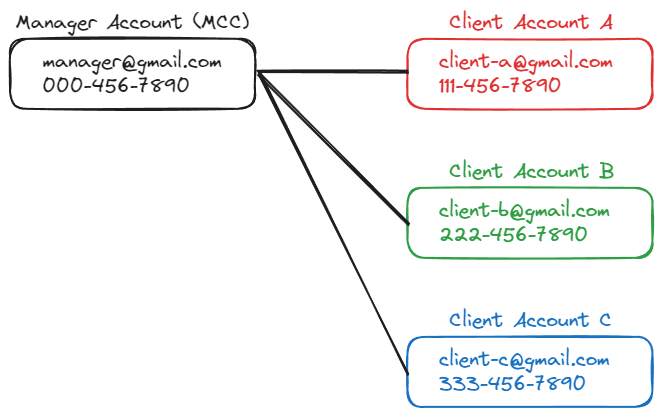
In order to create a manager account, visit the Google Ads manager account homepage and sign in or create an account.
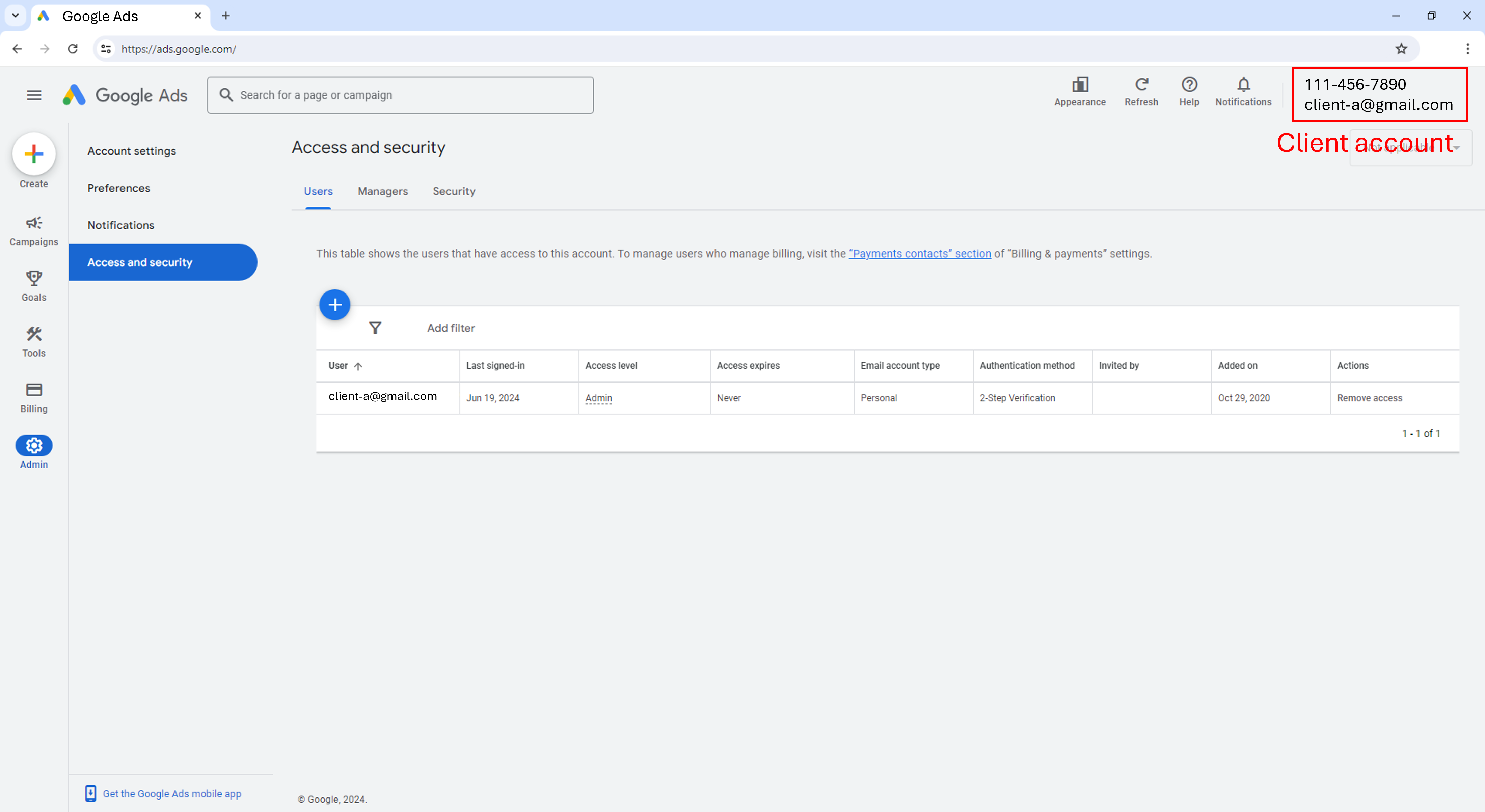
Once you’ve created a manager account, you can link it to Google Ads accounts by logging into a client account and going to Admin > Access and security, then adding the manager account as a manager.
2. Developer Token
A developer token allows your program to connect to the Google Ads API. You can obtain the developer token from MCC account > Admin > API Center.
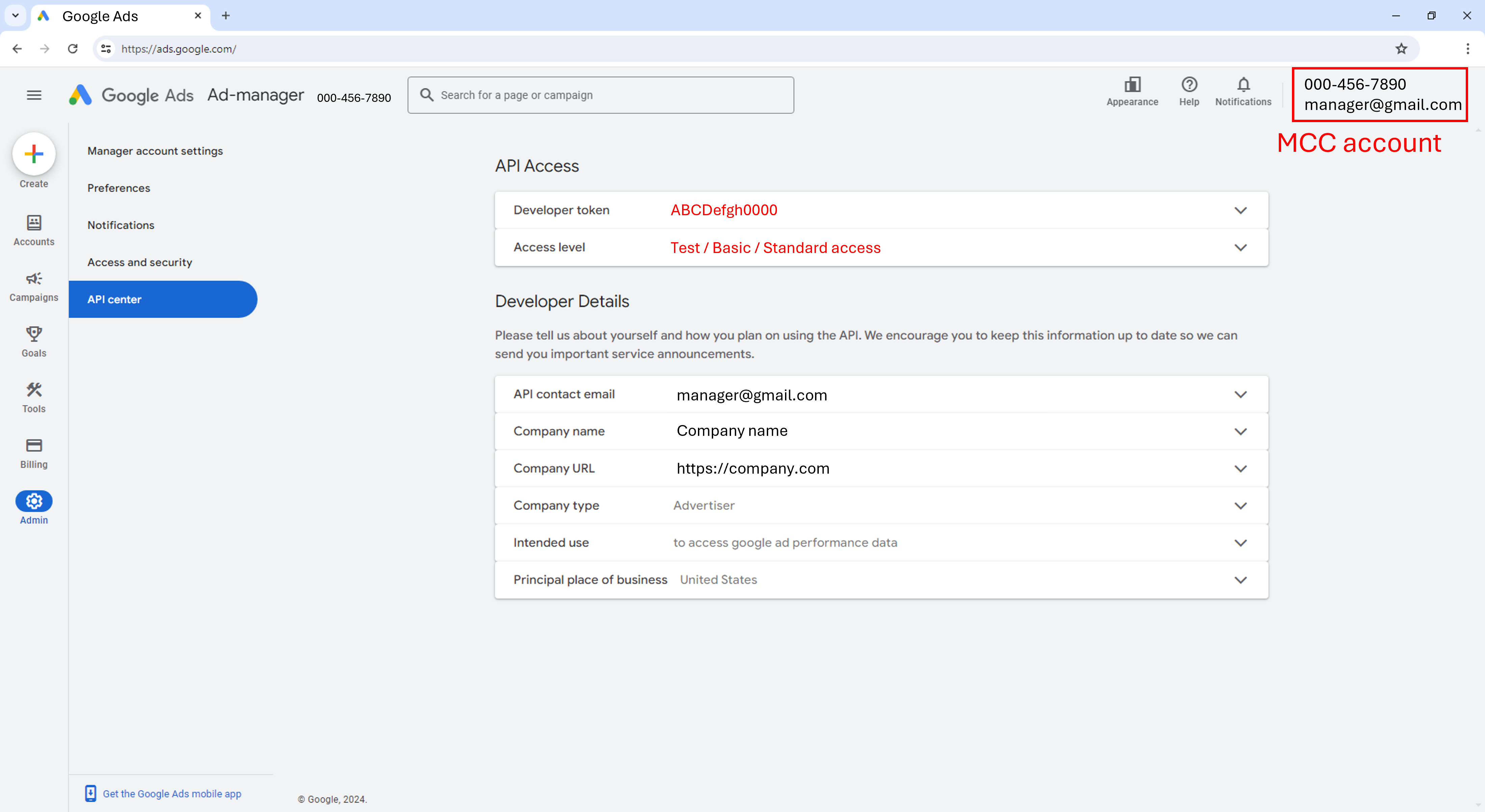
There are three access levels for the developer token:
- Test access: When you first sign up for the Google Ads API, you receive a developer token with test account access. This token can only make requests against test accounts. Test accounts don’t affect your live ads or charge your account, making them useful for experimenting with the API during development. However, test accounts can’t serve ads or interact with your production accounts in any way, and serving metrics - like impressions, conversions, or cost data - are empty.
- Basic access: Basic access allows the developer token to make requests against both test accounts and production accounts. Production accounts are live accounts that serve real Google ads. With basic access, you can execute up to 15,000 operations per day. To apply for basic access, fill out the basic access application form.
- Standard access: Standard access allows the developer token to execute an unlimited number of operations per day for most services. This includes services like
GoogleAdsService.SearchandSearchStream. To apply for standard access, fill out the standard access application form.
3. Enable API Access
You need a Google API Console project for creating OAuth 2.0 credentials, which are needed for the authentication and authorization of Google Ads users.
-
Go to the Google API Console.
-
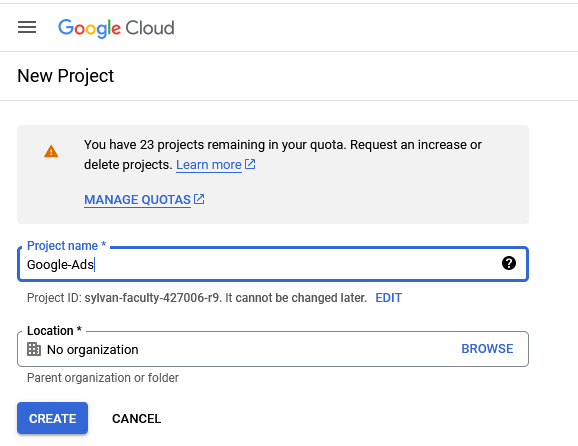
Click CREATE PROJECT.
-
Enter a name or accept the generated suggestion.
-
Confirm or edit any remaining fields.
-
Click CREATE.
-
To enable the Google Ads API in your project, open the API Library in the Google API Console.
-
Select your project from the dropdown menu.
-
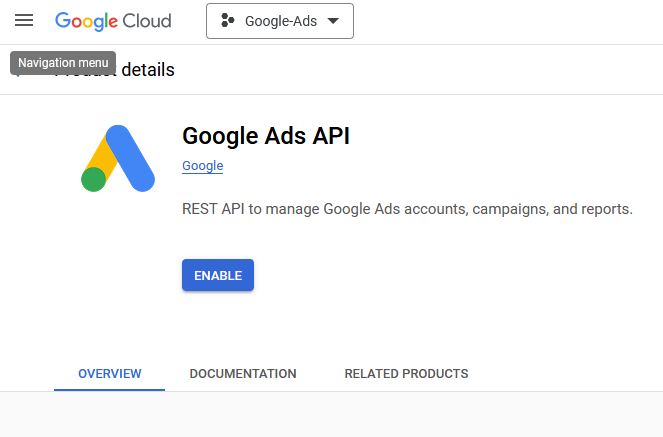
Search for Google Ads API and enable it.
4. Create OAuth 2.0 Credentials
In this step, we will configure an OAuth consent screen and create a client ID and client secret.
-
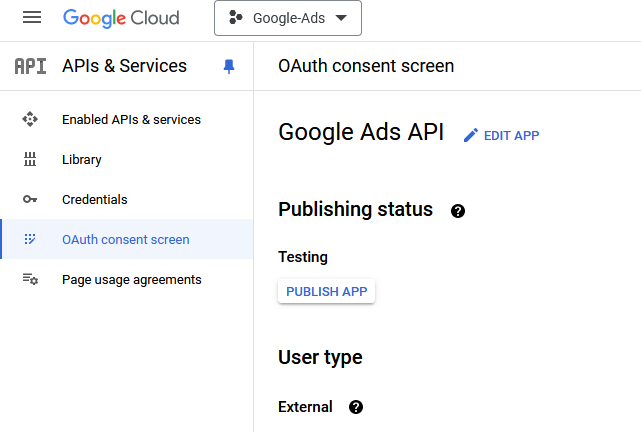
In the Google Cloud Console, navigate to APIs & Services > OAuth consent screen.
-
Select External as the user type and click CREATE.
-
Fill in the App name, User support email, and Developer contact information. Click SAVE AND CONTINUE.
-
On the next page, click ADD OR REMOVE SCOPES.
-
Enter the following in the field under Manually add scopes:
https://www.googleapis.com/auth/adwords -
Click ADD TO TABLE, then click UPDATE.
-
Click SAVE AND CONTINUE, and again SAVE AND CONTINUE.
-
Click BACK TO DASHBOARD, and then click PUBLISH APP.
-
To create a client ID and client secret, click Credentials to go to the Credentials page.
-
Click CREATE CREDENTIALS, then select OAuth client ID.
-
Choose Web application as the app type.
-
Fill in a name for the app.
-
Click ADD URI under Authorized redirect URIs.
-
Add the following URI:
https://developers.google.com/oauthplayground -
Click SAVE.
-
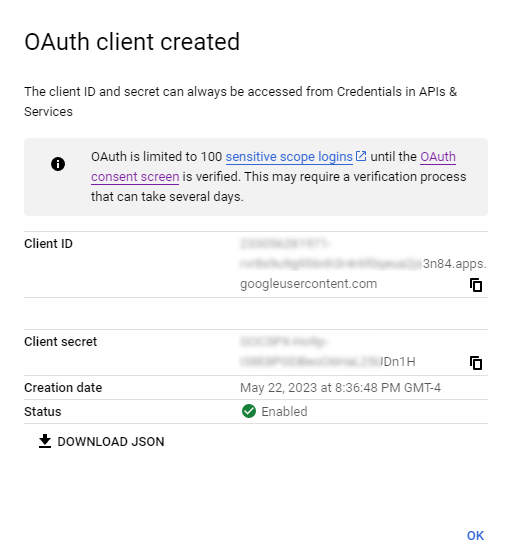
On the confirmation page, copy Your Client ID and Your Client Secret to your clipboard for configuring your client library later.
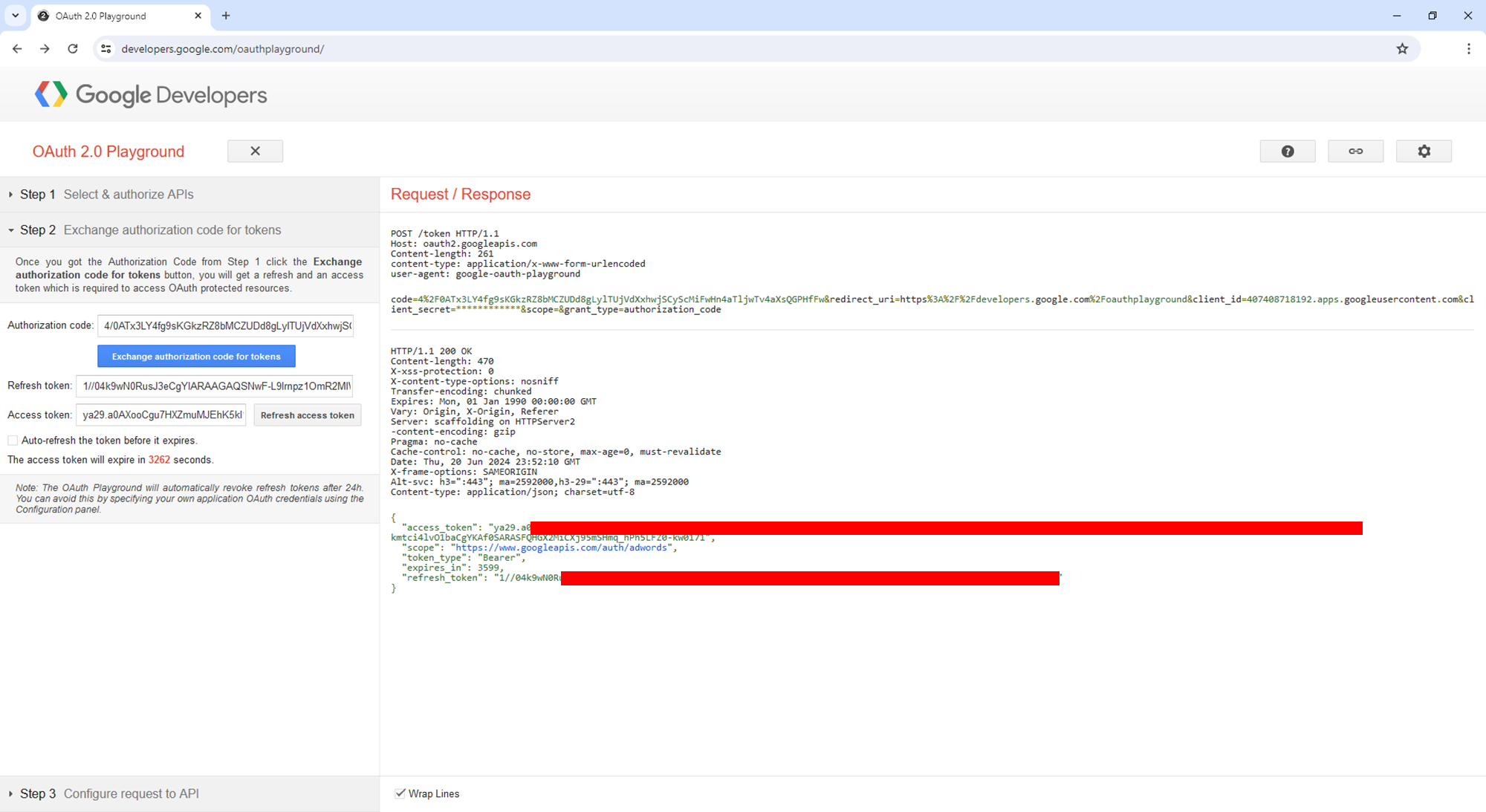
5. Generate OAuth 2.0 Refresh Tokens
The refresh token identifies a Google Ads account to make API calls.
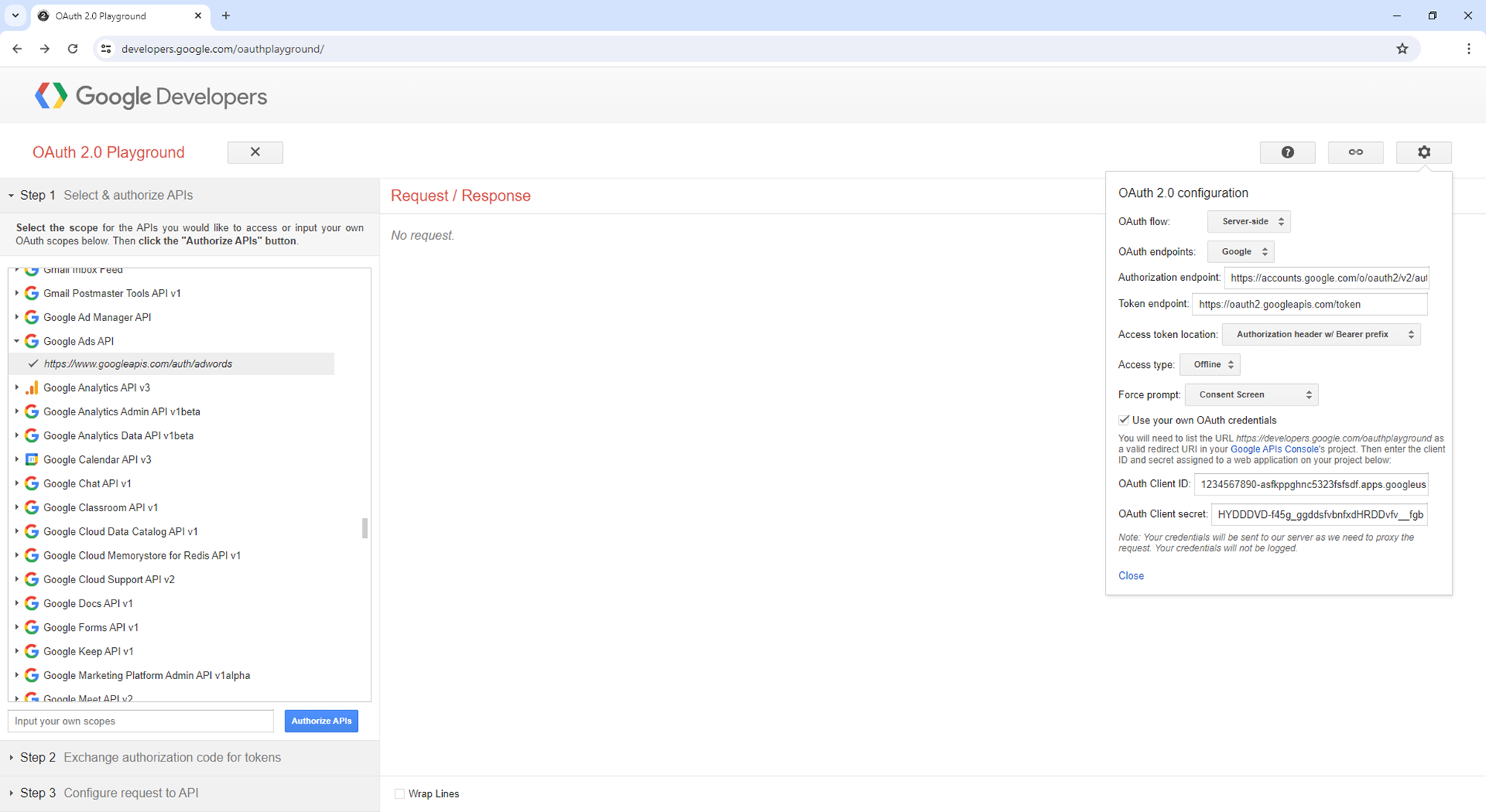
- Open the OAuth 2.0 Playground.
- Click the OAuth 2.0 Configuration (Gear icon).
- Click the checkbox Use your own OAuth credentials.
- Copy and paste OAuth Client ID and OAuth Client secret.
- Select Google API and click Authorize APIs.
- On the prompt page, choose a Google account and Continue.
- Click Exchange authorization code for tokens.
- Copy the Refresh token to your clipboard for configuring your client library later.
6. Make an API Call
-
Install the
google-adsPython library using pip:$ pip install google-ads -
Make a copy of the
google-ads.yamlfile from the GitHub repository and modify the following example to include your credentials:developer_token: ABCDefgh0000 client_id: 1234567890-asfkppghnc5323fsfsdf.apps.googleusercontent.com client_secret: HYDDDVD-f45g_ggddsfvbnfxdHRDDvfv__fgb refresh_token: 1//04k9wN0Rux3LY4fg9sKGkzRZ8bMCZUDd8gLylT login_customer_id: 000-456-7890 -
Create a
GoogleAdsClientinstance by calling theGoogleAdsClient.load_from_storagemethod. Pass the path to yourgoogle-ads.yamlas a string to the method when calling it:from google.ads.googleads.client import GoogleAdsClient import pandas as pd client = GoogleAdsClient.load_from_storage("google-ads.yaml") -
Next, run a campaign report using the
GoogleAdsService.SearchStreammethod to retrieve the campaigns in your account.def main(client, customer_id): ga_service = client.get_service("GoogleAdsService") query = """ SELECT campaign.name, campaign.status, metrics.impressions, metrics.clicks, metrics.conversions, metrics.average_cpc, metrics.cost_micros FROM campaign WHERE segments.date DURING LAST_WEEK_SUN_SAT""" # Issues a search request using streaming. stream = ga_service.search_stream(customer_id, query) # Access the iterator and convert to dataframe. data = [] for batch in stream: for row in batch.results: data.append({"Name" : row.campaign.name, "Status" : row.campaign.status.name, "Impressions" : row.metrics.impressions, "Clicks" : row.metrics.clicks, "Conversions" : int(row.metrics.conversions), "Cost" : row.metrics.cost_micros/1e+6, "Cost per Click" : round(row.metrics.average_cpc/1e+6,2)}) df = pd.DataFrame(data) return df -
Run the code to test the connection.
df = main(client, "1114567890")0 Name Status Impressions Clicks Conversions Cost Cost per Click 1 Campaign name A PAUSED 0 0 0 0 0 2 Campaign name B ENABLED 100 10 1 10.99 1.01 3 Campaign name C PAUSED 0 0 0 0 0 4 Campaign name D ENABLED 200 20 2 39.99 2.00